
Disclosure: Pro Video Tips may earn a commission if you buy through links on this page, at no extra cost to you.
Captions help people who watch with the sound off, viewers who are deaf or hard of hearing, and anyone watching in a second language. Filmora 16 can generate them for you in two ways:
- Speech to Text – plain subtitles.
- Dynamic Captions – animated, word-by-word captions popular on Shorts and Reels.
New in Filmora 16: Smart Text Correction flags likely mistakes, and captions now sit on their own subtitle track, so one style change applies everywhere.
Speech-to-text is listed as a credit-based AI feature on Wondershare’s plan page, so check the credit cost shown before you run it.
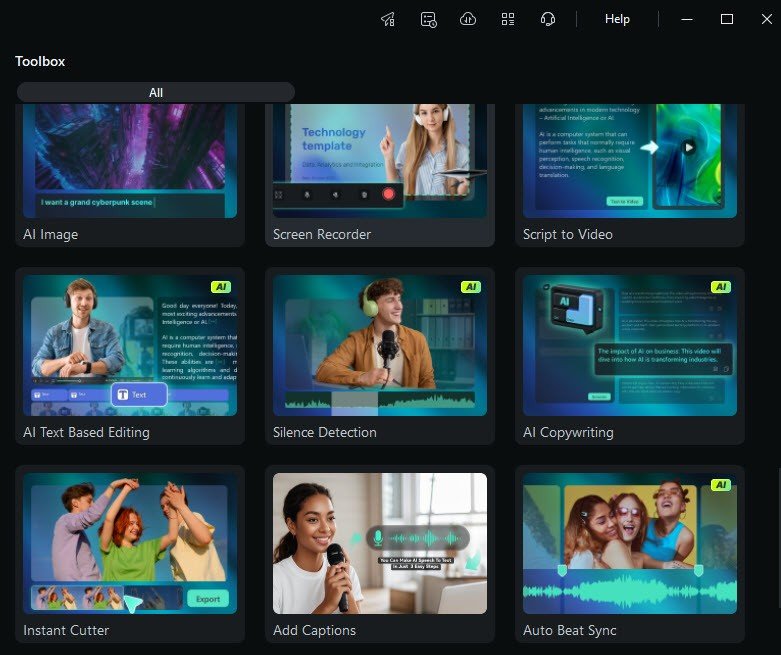
Method 1: Speech to Text (standard subtitles)
- Import your video and add it to the timeline.
- Open Titles in the top menu, choose AI Captions, then Speech to Text.
-
Pick the spoken language and output options, then click Create.
-
Double-click the caption track to edit the text and style. Click Apply to All to use the same style on every caption.
- Review the suggestions from Smart Text Correction and accept or fix each one.
Method 2: Dynamic Captions (animated word-by-word)
- Open Titles > AI Captions > Dynamic Captions.
- Choose the language, and whether to add a translation, then click Create.
- In the panel on the right, customise the active word (the word highlighted as it’s spoken) – colour, size, animation.
- Use the template search to find a style, and the portrait-ready layouts for 9:16 videos.
- Save your style so you can reuse it on the next video.
Make captions accurate
AI transcription is good but not perfect. Always check:
- Names of people, places and brands.
- Technical words and jargon.
- Numbers and prices.
- Places where two people talk over each other.
Clean audio gives better captions. Run noise reduction and normalise loudness before generating.
Make captions readable
- Keep lines short – about 32–42 characters.
- Use high contrast: white text with a dark outline or background box.
- Keep captions clear of the bottom 15–20% on Shorts, where the platform’s own buttons and text appear.
- Don’t animate every word in a long tutorial – it gets tiring. Save Dynamic Captions for short clips.
Exporting captions
You can burn captions into the video, or export them as a separate subtitle file to upload to YouTube. Separate files let viewers turn captions on and off and can be edited later in YouTube Studio.
Next: use captions in a full YouTube edit · see other Filmora AI features · look up terms in our glossary · try Filmora 16 free.
Sources
- Wondershare: Auto Caption guide: https://filmora.wondershare.com/guide/auto-caption.html
- What’s New in Filmora 16: https://filmora.wondershare.com/whats-new-in-filmora-video-editor.html
- Filmora shop (AI credit features list): https://filmora.wondershare.com/shop/buy/buy-video-editor.html
About the author
The Pro Video Tips Team is based in Victoria, Australia, and creates practical Filmora tutorials, software reviews and comparisons. We aim to explain useful features, costs and limitations clearly so readers can choose and use the right editor.