
Disclosure: Pro Video Tips may earn a commission if you buy through links on this page, at no extra cost to you.
A good intro is short. Most viewers decide in the first few seconds whether to keep watching, so a long logo animation can cost you views. Aim for 3–5 seconds, and put it after a quick hook that tells viewers what the video is about.
Plan it first
- Channel name or logo – one element, clearly readable.
- Two or three brand colours and one font. Use the same ones in your thumbnails.
- A short sound – a whoosh or two-second music sting.
Option 1: Start from a template
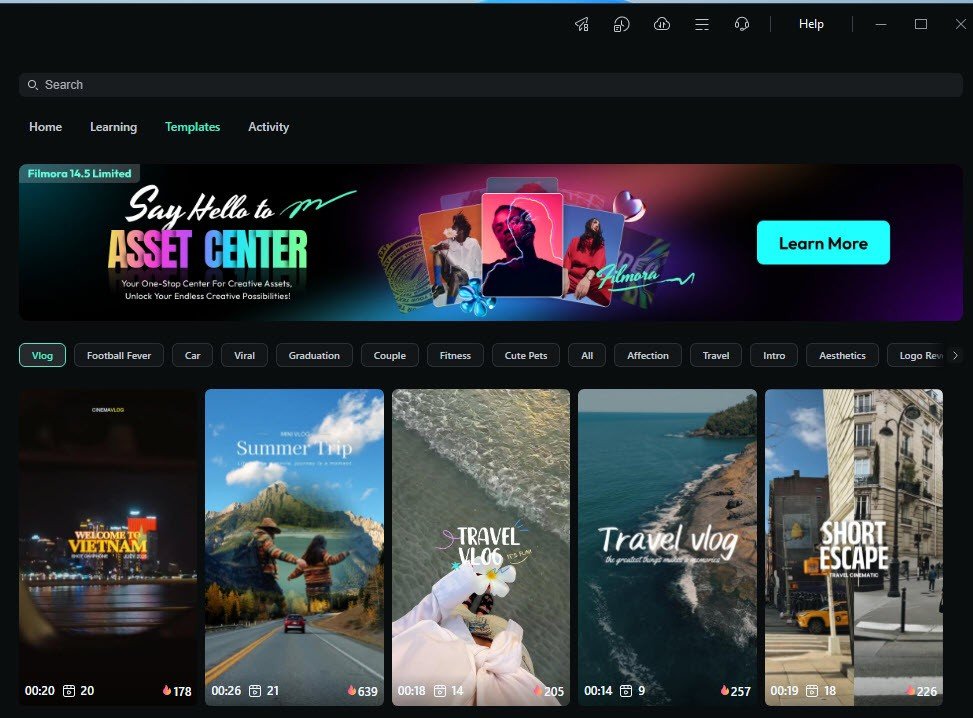
- Create a 16:9 project at your usual frame rate.
- Open Titles (or Templates) and search for “intro”, “logo” or “opener”.
- Drag one onto the timeline.
- Double-click it to change the text, font and colours to your brand.
- Replace placeholder media with your logo.
Templates are fast, but other channels use them too. Change the colours, font and timing so it doesn’t look generic.
Option 2: Build your own
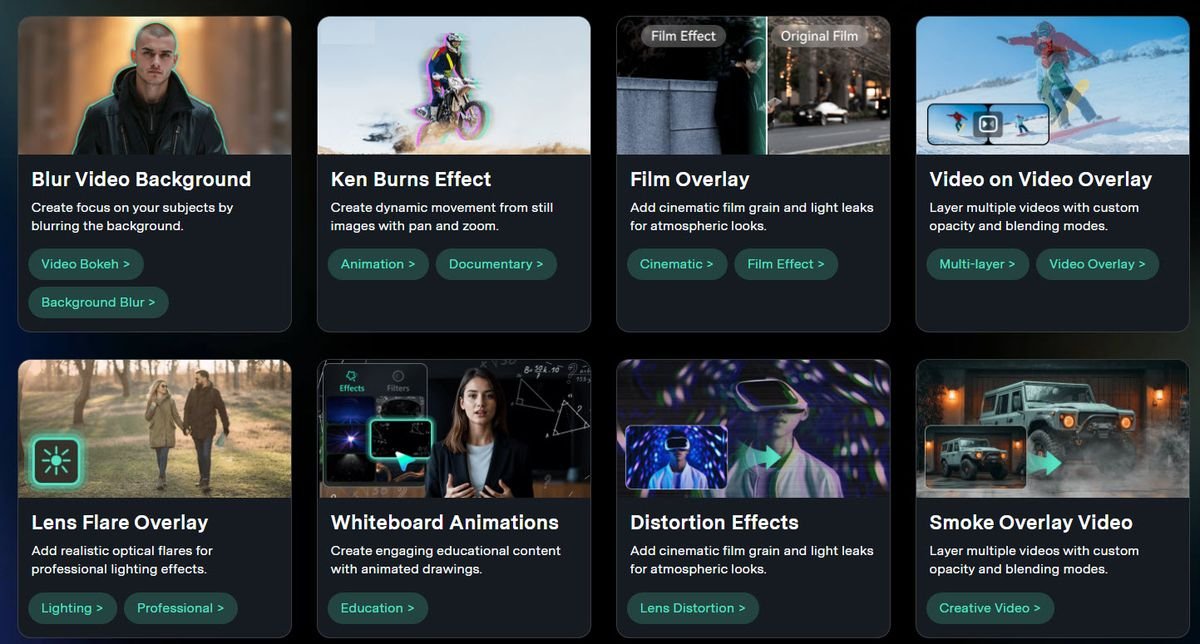
- Put a background on track 1 – a solid colour, a blurred clip of your footage, or a simple gradient.
- Add your logo or channel name on track 2.
- Animate it with keyframes (scale from 90% to 100% and fade in) or a Combo Animation, new in Filmora 16, which handles the entrance, hold and exit in one go.
- Turn on keyframe motion blur (also new in 16) for smoother movement.
- Add a short sound effect timed to the main movement.
Optional extras: Track Matte to reveal your logo through text or a shape; the Pen Tool to draw a line or path that animates in.
Save it for reuse
Export the intro as its own file, or save the project, so you can drop it into every video. If you use it often, save the title as a custom preset.
Export settings
Match your main video’s resolution and frame rate (for example 1920×1080 or 3840×2160 at 30 fps) so there’s no jump when the intro plays.
Intro mistakes
- Longer than 5 seconds.
- Before the hook.
- Text too small to read on a phone.
- Loud music that’s much louder than your voice.
Next: edit the rest of the video with our YouTube tutorial · add captions · match colours with colour grading · try Filmora 16 free.
Sources
- What’s New in Filmora 16 (Combo Animation, Keyframe Motion Blur, Track Matte): https://filmora.wondershare.com/whats-new-in-filmora-video-editor.html
About the author
The Pro Video Tips Team is based in Victoria, Australia, and creates practical Filmora tutorials, software reviews and comparisons. We aim to explain useful features, costs and limitations clearly so readers can choose and use the right editor.