
Disclosure: Pro Video Tips may earn a commission if you buy through links on this page, at no extra cost to you. CapCut is not an affiliate partner.
Short answer: If you shoot and post Shorts from your phone, CapCut is faster. If you cut Shorts out of longer videos on a computer, or you want a one-time licence, Filmora 16 is the better fit. Many creators use both.
At a glance
| Filmora 16 | CapCut | |
|---|---|---|
| Made by | Wondershare | ByteDance |
| Platforms | Windows, macOS (plus separate mobile apps) | Phone, desktop, web |
| Free version | Full editor, watermark on export | Free plan with basic tools and templates |
| Paid | US$49.99–59.99/yr (Basic or Advanced), or US$79.99 perpetual (as at Nov 2026) | Pro subscription (A$37.99/month shown on CapCut’s pricing page; final price after sign-in) |
| Best at | Longer desktop edits, repurposing long videos | Fast, template-driven vertical clips |
| Captions | Auto Captions, Dynamic Captions, Smart Text Correction | Auto captions with many animated styles |
Prices checked 4 November 2026. CapCut says its displayed prices are for reference and the final price depends on your account and region.
Workflow: where each one is faster
CapCut is built around templates and trends. Pick a template, drop in clips, and it handles timing, text and music. It syncs between phone and desktop, so you can start on one and finish on the other.
Filmora is built around a normal timeline. For Shorts, the useful tools are:
- Auto Reframe to turn a 16:9 video into 9:16 (free on all plans).
- Camera Tracking (new in 16) to keep a face or body centred after the crop.
- Smart Short Clips to pull highlight clips out of a long video (uses AI credits).
- Dynamic Captions with portrait-ready layouts and the new Smart Text Correction.
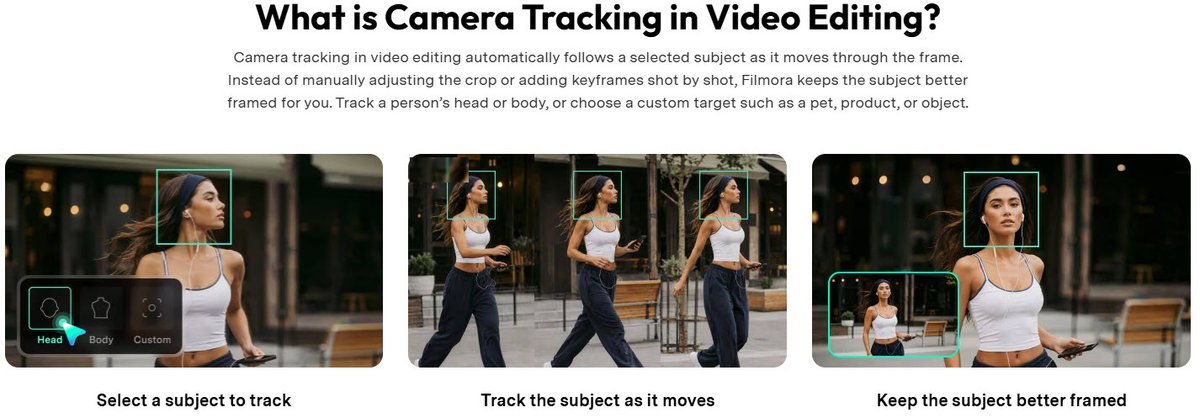
If you film a long YouTube video and then cut three Shorts from it, Filmora keeps it all in one project. If every Short is filmed on your phone for that platform, CapCut is less work.
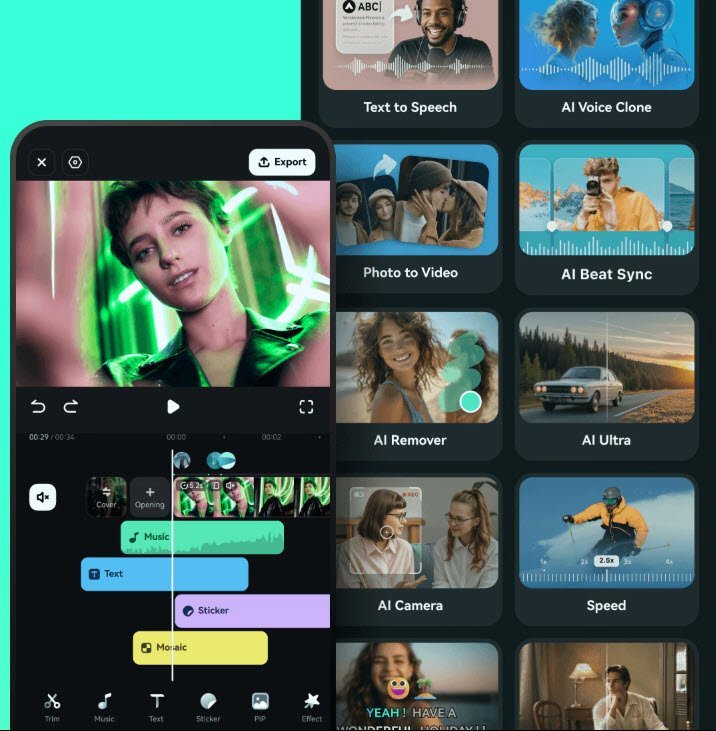
Filmora also has separate mobile apps with their own phone timeline and AI tools. They are a different product from the desktop editor compared here, so check what your purchase covers.
Captions
Both generate captions automatically. Filmora 16 adds Smart Text Correction, which flags likely errors, and a separate subtitle track so one style change applies to every caption. CapCut has a larger set of trendy animated caption styles. Either way, proofread names and technical words. Our auto-captions tutorial walks through Filmora’s steps.
Templates and assets
CapCut’s template library follows social trends closely. Filmora has a big library of titles, transitions, effects, music and stock media; the full set needs a paid plan. If you want your Shorts to look like everyone else’s this week, CapCut is easier. If you want a consistent channel look, Filmora’s custom titles and saved presets work well.
Pricing and ownership
CapCut’s paid features are subscription-only. Filmora offers both subscriptions and a perpetual licence for the current version. Both put many AI tools behind credits, so compare how often you’d use them. See our Filmora pricing guide.
Privacy and account
CapCut stores projects in the cloud by default when you use sync. Filmora projects are local files, with optional cloud storage (1 GB on Basic, 10 GB on Advanced). If you work with client footage, check each company’s terms.
Which should you choose?
- Phone-first creator, trend-driven content: CapCut.
- Desktop editor making long videos plus Shorts: Filmora 16.
- Tight budget, no watermark: CapCut’s free plan, or see best free video editors.
Next: Try Filmora 16 free · learn the full YouTube editing workflow in Filmora · add an intro.
Sources
- Filmora shop: https://filmora.wondershare.com/shop/buy/buy-video-editor.html
- What’s New in Filmora 16: https://filmora.wondershare.com/whats-new-in-filmora-video-editor.html
- Filmora Auto Caption guide: https://filmora.wondershare.com/guide/auto-caption.html
- CapCut pricing: https://www.capcut.com/pricing
About the author
The Pro Video Tips Team is based in Victoria, Australia, and creates practical Filmora tutorials, software reviews and comparisons. We aim to explain useful features, costs and limitations clearly so readers can choose and use the right editor.