
Disclosure: Pro Video Tips may earn a commission if you buy through links on this page, at no extra cost to you.
Filmora has dozens of AI tools. Some save real time on everyday edits; others are novelties. Here are the ten we think matter most for YouTubers and small businesses, with an honest note on limits and cost.
About credits: Wondershare’s plan page lists which tools are “paid by AI credits”. As at November 2026, Advanced (US$59.99/yr) includes 1,000 credits a month, Perpetual (US$79.99 once) includes 1,000 once, and Basic (US$49.99/yr) includes none. Prices change. Credit costs vary by tool and clip length and are shown before you run a task.
| # | Feature | What it saves | Uses credits? |
|---|---|---|---|
| 1 | Auto Captions + Smart Text Correction | Typing subtitles | Speech-to-text: yes |
| 2 | Smart Cutout | Green-screen setup | Check in app |
| 3 | Camera Tracking (new in 16) | Manual reframing | Check in app |
| 4 | AI Media Analysis (new in 16) | Hunting through footage | Yes |
| 5 | Auto Reframe | Re-cutting for vertical | No |
| 6 | Smart Short Clips | Finding highlights | Yes |
| 7 | AI Audio tools + Auto Normalization | Audio cleanup | Mixed |
| 8 | AI Object Remover | Removing distractions | Yes |
| 9 | AI Extend | Filling short gaps | Yes |
| 10 | AI Mate | Finding features | Free uses included |
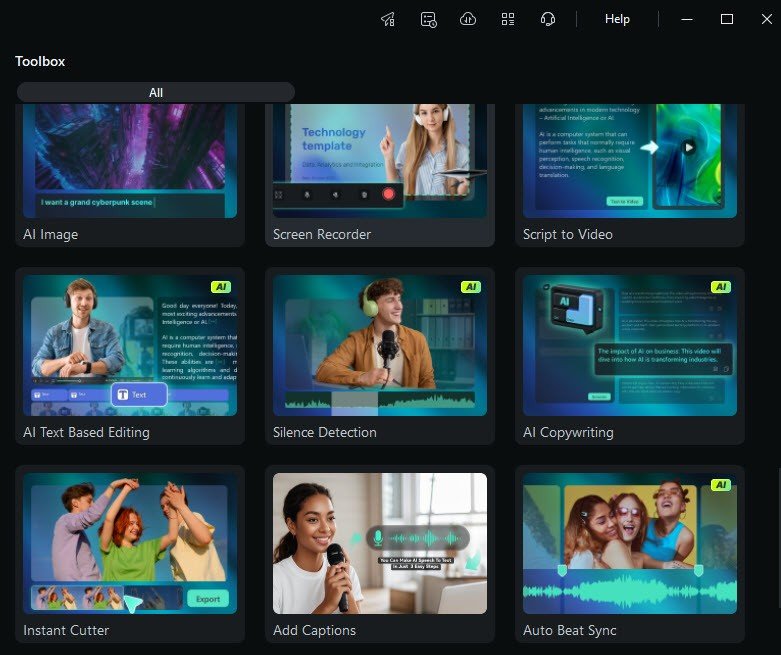
1. Auto Captions with Smart Text Correction
Generates subtitles from speech. Filmora 16 adds Smart Text Correction, which flags likely mistakes, and a separate subtitle track for one-click styling. Still proofread names and jargon. How to use it.
2. Smart Cutout
Paint over a subject and Filmora separates it from the background across the clip. Works best with good contrast; hair and fast motion need touch-ups. Step-by-step.
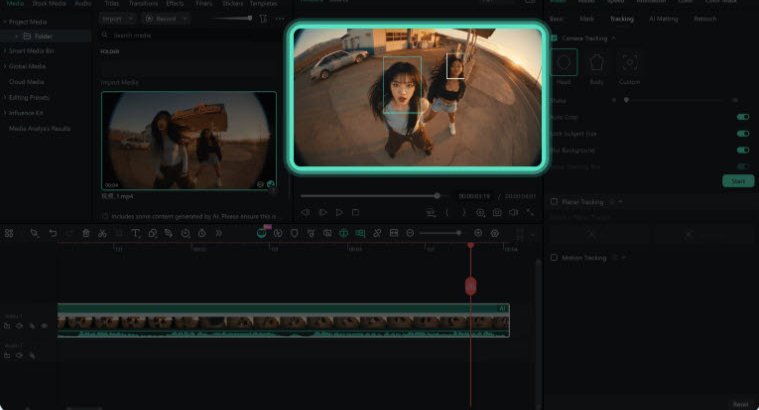
3. Camera Tracking (new in Filmora 16)
Choose head, body or a custom area and Filmora keeps it framed. Great for punch-ins on a single-camera talking head, or keeping a subject centred in a vertical crop.
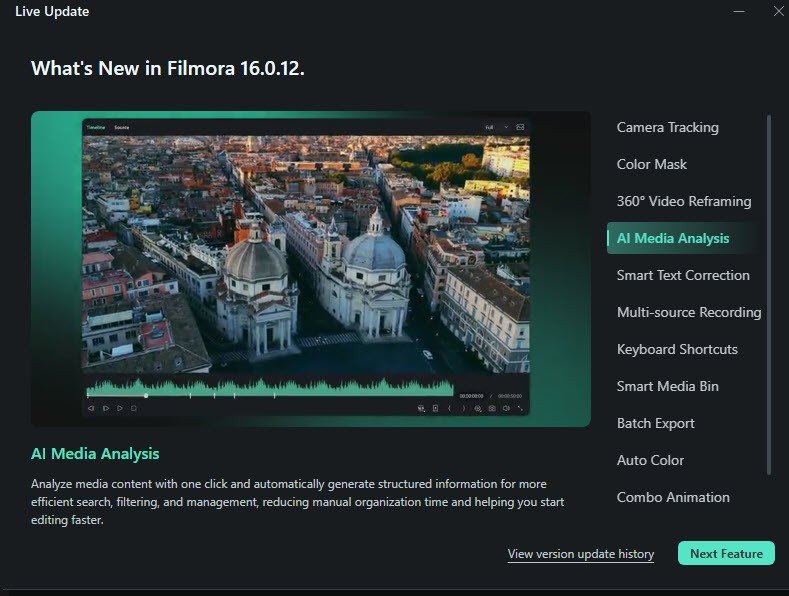
4. AI Media Analysis (new in Filmora 16)
Analyses clips and adds keywords describing people, scenes and actions, so you can search your media. Most useful on large shoots; it uses credits per file.
5. Auto Reframe
Converts horizontal video to vertical or square, keeping the main subject in frame. Free on all plans according to Wondershare’s plan table.
6. Smart Short Clips
Picks highlights from a long video and turns them into vertical clips with captions and music. A fast first draft for Shorts – review every clip before posting.
7. AI audio tools and Auto Normalization
Noise reduction, voice enhancement and vocal removal clean up imperfect recordings. Auto Normalization (added in 15.1) sets loudness to a platform target in one click. Use voice enhancement lightly; too much sounds robotic.
8. AI Object Remover
Removes unwanted objects, people or text from a shot. Results depend on the background behind the object – simple backgrounds work best.

9. AI Extend
Extends a clip’s video and audio by a few seconds to fill a gap or let a shot breathe. Check the result closely; generated frames can look odd on complex motion.
10. AI Mate
A chat assistant inside Filmora (added in 15.1) that can run edits and point you to features. Free plan users get 15 uses a day; paid plans get 500 a month.
Worth knowing about, but not on our list
Text-to-video, image-to-video, AI music and AI image generation are impressive, but they cost credits and are less useful for typical tutorial or talking-head channels. AI Night View (new in 16) is handy if you film in low light.
Bottom line
If you’ll use more than two or three of the credit-based tools regularly, choose Advanced. If 1,000 credits a month is not enough, you can buy extra credits. If you mainly want captions, cutouts and reframing, Basic or Perpetual may be enough. See Filmora pricing.
Next: try Filmora 16 free · put them to work in a YouTube edit.
Sources
- Filmora shop (AI credits and feature table): https://filmora.wondershare.com/shop/buy/buy-video-editor.html
- What’s New in Filmora: https://filmora.wondershare.com/whats-new-in-filmora-video-editor.html
- Camera Tracking guide: https://filmora.wondershare.com/guide/camera-tracking.html
- AI Media Analysis guide: https://filmora.wondershare.com/guide/ai-media-analysis.html
- Smart Cutout guide: https://filmora.wondershare.com/guide/ai-smart-cutout-for-windows.html
About the author
The Pro Video Tips Team is based in Victoria, Australia, and creates practical Filmora tutorials, software reviews and comparisons. We aim to explain useful features, costs and limitations clearly so readers can choose and use the right editor.