
Disclosure: Pro Video Tips may earn a commission if you buy through links on this page, at no extra cost to you. We point out limitations as well as strengths.
Short version: Filmora 16 is a good fit for YouTubers, educators and small-business owners who want a desktop editor they can learn in an afternoon, with optional AI tools on top. It is not the right pick if you need a completely free, watermark-free editor (try DaVinci Resolve) or a high-end professional pipeline.
What Filmora is, in one paragraph
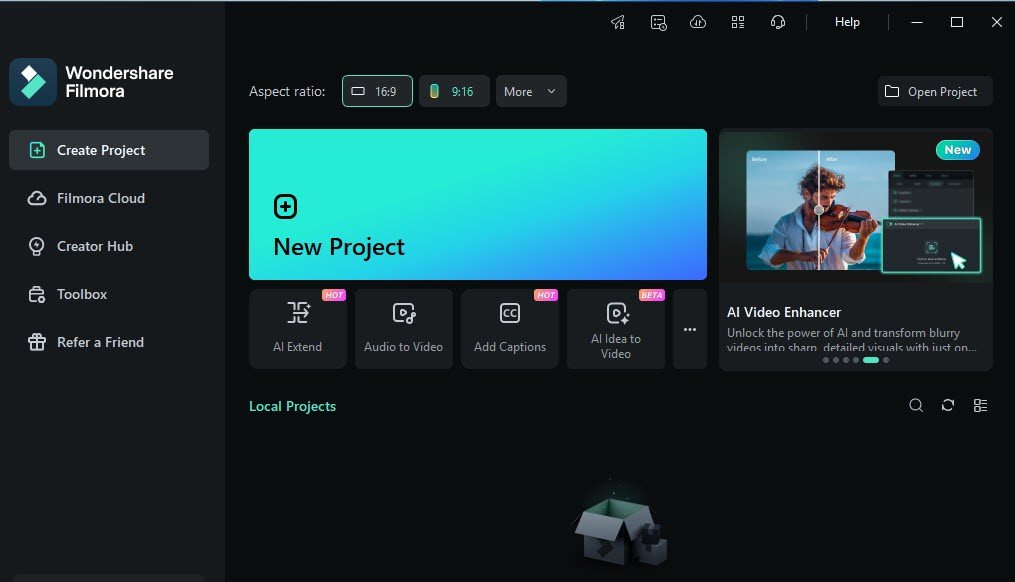
Filmora is Wondershare’s desktop video editor for Windows and macOS. It sits between phone-first apps like CapCut and professional suites like Premiere Pro and DaVinci Resolve. You get a normal multi-track timeline, a big built-in library of titles, transitions, music and stock footage, and a set of AI tools, some free and some paid with “AI credits”.
What’s new in Filmora 16
Filmora 16 launched in October 2026. According to Wondershare’s release notes, the headline additions are:
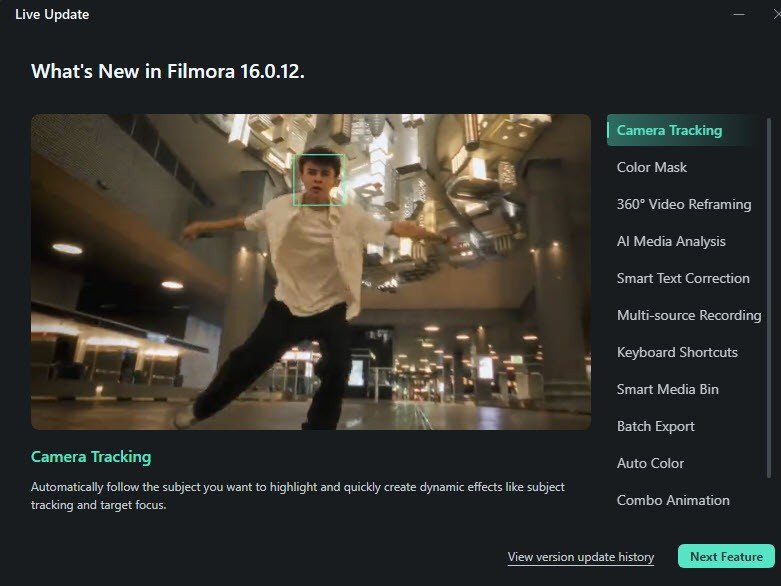
- Camera Tracking – pick a head, body or custom area and Filmora reframes the shot to follow it. Useful for turning a wide talking-head shot into a punch-in, or for vertical crops.
- Color Mask – add grading layers and limit each one to a rectangle, circle or drawn shape. In earlier versions you graded the whole frame; now you can brighten just a face or darken just a sky.
- AI Media Analysis – Filmora scans clips and tags them with keywords (people, scenes, actions) so you can search your footage. It uses AI credits.
- Smart Text Correction – flags likely mistakes in auto-generated captions and suggests fixes.
- Multi-Source Recording – record screen, webcam and audio in one take, each as its own track.
- 360° Video Reframing – turn 360° footage into normal shots on the timeline.
Smaller improvements include a dedicated subtitle track, Track Matte, Auto Color, keyframe motion blur, AI Night View for dark footage, a visual shortcut-key manager, XML import/export and batch export presets. Game Recording is Windows-only in version 16.0.0.
Everything added during the Filmora 15 cycle is still there: dual timelines (compound clips open in their own tabs), the Pen Tool, Source and Timeline monitors, AI Extend, Smart Cutout, AI Object Remover, the 32-bit audio pipeline, AI Mate (a chat assistant), loudness normalisation to platform LUFS targets, a teleprompter in the screen recorder, and the HDR colour wheel.
Pricing (as at November 2026)
| Plan | Price (US shop) | Version upgrades | AI credits | Cloud |
|---|---|---|---|---|
| Free | $0 | – | Credit-based tools need credits | – |
| Basic | US$49.99/year | Included while subscribed | None included | 1 GB |
| Advanced | US$59.99/year | Included while subscribed | 1,000 per month | 10 GB |
| Perpetual | US$79.99 once | Filmora 16 updates only | 1,000, one-time | 1 GB |
Three things people miss:
- The free version watermarks every export. It is a full trial, not a free plan.
- “Perpetual” means you keep Filmora 16 forever, not that you get Filmora 17 free. Wondershare’s FAQ says major-version upgrades are a paid (discounted) extra for perpetual owners.
- Many AI tools cost credits – AI Extend, text-to-video, AI music, AI translation, AI Object Remover and more. Basic includes no monthly credits, so if you plan to use those tools a lot, Advanced (1,000 credits a month) is the better fit.
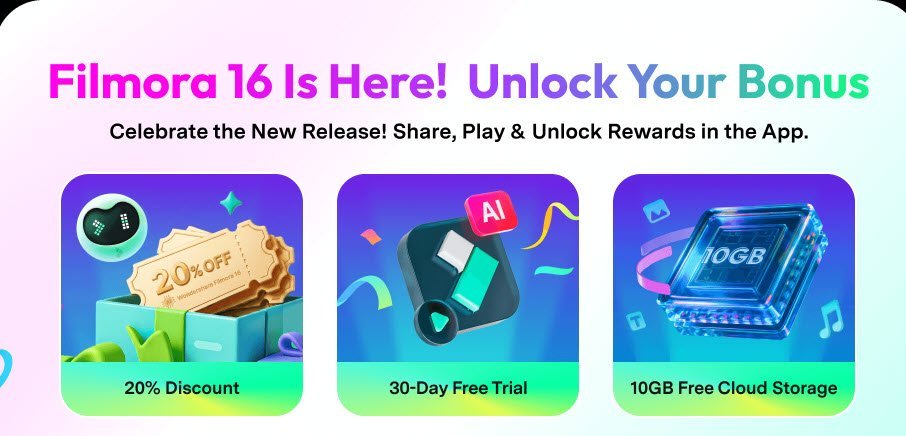
Prices are in US dollars, as at November 2026, and change often. Students and teachers can buy separate Education plans (as at November 2026: US$19.99/month, US$39.99/year or US$49.99 perpetual). Wondershare is also promoting a Filmora 16 launch bonus (20% off, a 30-day free trial and 10 GB of free cloud storage, unlocked through in-app rewards); treat it as a launch promotion that may end at any time. Australian and other regional prices, tax and promotions vary – check the shop for your country before you buy. See our Filmora pricing guide and perpetual vs annual comparison for the maths.
Will it run on your computer?
Wondershare’s minimum spec for Windows is an Intel 6th Gen or Ryzen 3 1300X, 8 GB RAM and a graphics card with 2 GB VRAM. For HD and 4K editing it recommends an Intel 9th Gen or newer, 16 GB RAM, 4 GB VRAM and an SSD. If you are below that, use proxy files for 4K footage and expect AI features to be slow.
Pros
- Quick to learn. The layout is familiar and most tasks are a drag and drop.
- Useful mid-level tools. Dual timelines, the Pen Tool, Color Mask and Camera Tracking cover what many YouTubers used to need a second app for.
- Good built-in assets. Titles, transitions, music and stock footage are in the app, though the full library needs a paid plan.
- One-time purchase option. Unlike Premiere, you can buy a perpetual licence.
Cons
- Watermark on free exports.
- AI credits add a second cost if you lean on generative tools.
- Perpetual buyers pay again for the next major version.
- Not a pro finishing tool. Colour, audio and collaboration are well behind DaVinci Resolve Studio and Premiere Pro.
- Lots of upsell prompts for credits and assets inside the app.
How it compares
- vs CapCut: CapCut is faster for template-driven Shorts and works on your phone. Filmora is better for longer desktop projects and offers a one-time licence. Full comparison.
- vs DaVinci Resolve: Resolve’s free version has no watermark and far deeper colour and audio tools, but it takes much longer to learn. Full comparison.
- vs Premiere Pro: Premiere is the industry standard but costs US$22.99/month on an annual plan. Full comparison.
Test these in the free trial before you pay
- Import a few minutes of your own footage and check playback on your computer.
- Run Auto Captions on a real clip and count how many words you need to fix.
- Try Smart Cutout on a hard subject (hair, fast movement).
- Export a 1080p and a 4K test file and check speed and quality.
- Note which AI tools ask for credits.
Verdict
Buy Filmora 16 if you publish regularly, want results quickly, and value an easy timeline over pro-level depth. Advanced is the best-value plan for most people who use AI tools; Basic is enough if you won’t.
Skip it if you need free, watermark-free exports (use DaVinci Resolve), or you already work in a professional studio pipeline.
Next: Try Filmora 16 free from the official site and follow our YouTube editing tutorial.
Sources
- Wondershare Filmora shop (plans, credits, FAQ): https://filmora.wondershare.com/shop/buy/buy-video-editor.html
- What’s New in Filmora: https://filmora.wondershare.com/whats-new-in-filmora-video-editor.html
- Filmora 16 launch press release: https://www.prnewswire.com/news-releases/wondershare-filmora-16-launches-to-make-professional-video-creation-more-accessible-with-ai-302902469.html
- Filmora 16 upgrade FAQ: https://support.wondershare.com/how-tos/filmora/is-filmora-16-worth-buying-or-paying-to-upgrade-why-is-it-priced-this-way.html
- Filmora tech specs: https://filmora.wondershare.com/tech-spec.html
About the author
The Pro Video Tips Team is based in Victoria, Australia, and creates practical Filmora tutorials, software reviews and comparisons. We aim to explain useful features, costs and limitations clearly so readers can choose and use the right editor.